Git & GitHub

version control, github, rstudio integration

2026-01-13

Housekeeping

  • Accountability plans due YESTERDAY
  • Make sure you have GitHub account created
  • RStudio + Git setup: happygitwithr.com

Why Version Control?

Final_NDrevisions-finalmarch22_FINALFINAL.docx
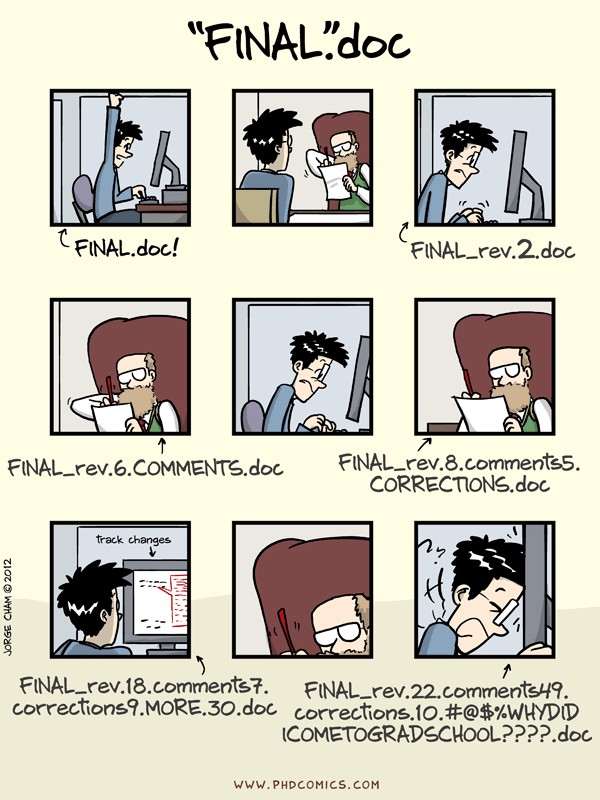
PhD Comics: notFinal.doc

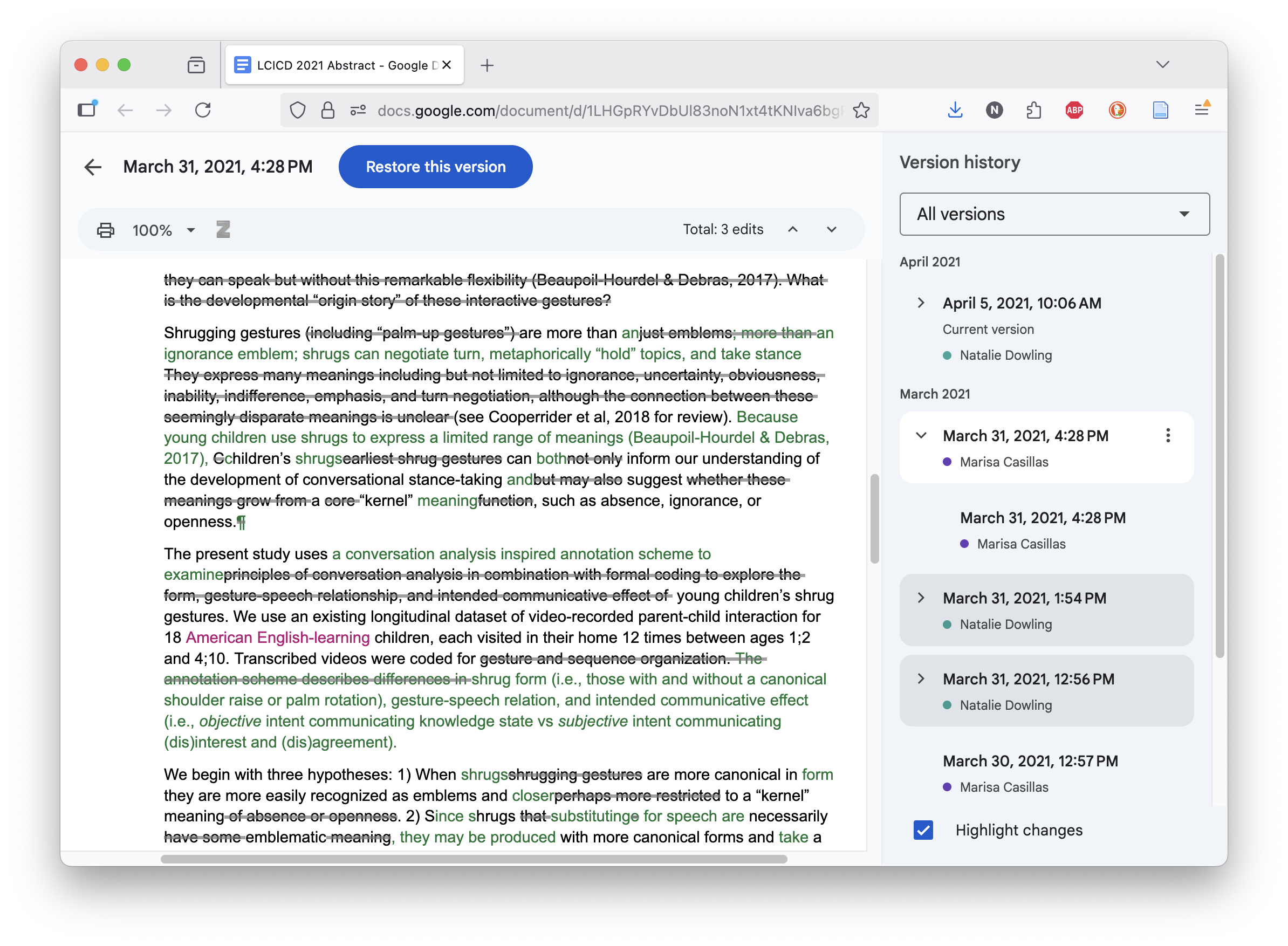
Version Control Basics

  • Minimally:
    • What changed?
      • additions, deletions, modifications
    • When?
      • timestamp for each change
    • Who changed what?
      • track author contributions in collaborative work
    • Revert changes!
      • go back to any previous version instantly

Google Doc version history

Git Version Control

Git is a robust version control system designed for text-based files

What? When? Who? Revert! plus:

  • Which change is this?
    • unique IDs for every revision
  • Why did it change?
    • commit messages explain purpose
  • Branch and merge
    • work on multiple features simultaneously
  • Backup
    • project (aka repository) history lives in multiple places
  • Asynchronous collaboration
    • identify and resolve conflicting changes
  • Integration
    • with IDEs (e.g., RStudio) and cloud services (e.g., GitHub)
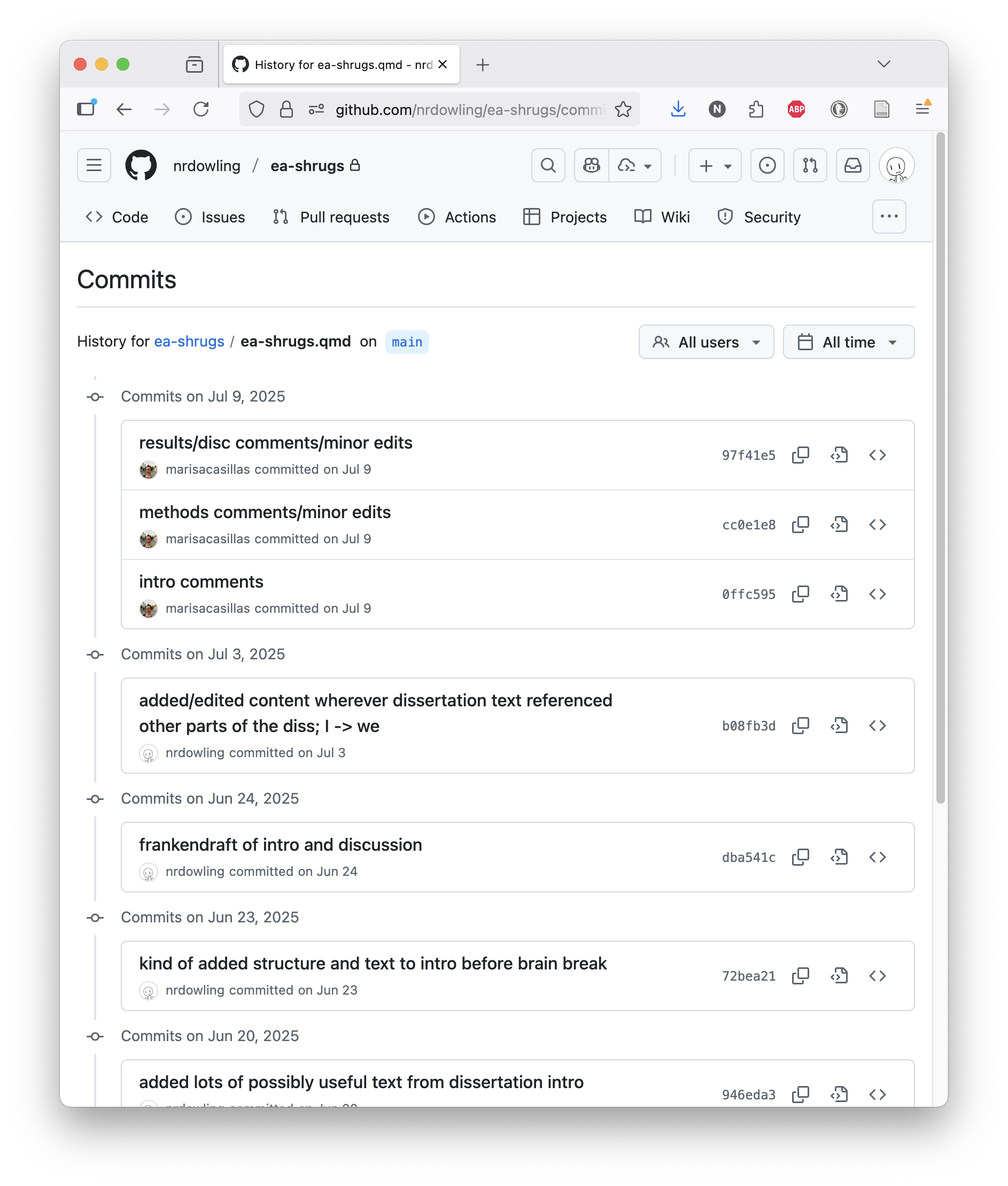
Git commit history

Git Repositories

A repository (or “repo”) is a project folder tracked by Git. Everything Git does is centered around repos.

Git repos can be local (on your computer) or remote (hosted on a server like GitHub).

Any folder on your computer can be turned into a Git repository (i.e. “initialized”), but a well-organized repo typically includes a few key components:

  • Project files (e.g., scripts, data, documents)
  • Metadata files (hidden files and directories that Git uses to manage version control)
  • Bespoke files like README.md, .gitignore, and .yml files (more on these later)

Git ≠ GitHub

GitHub: a web-based platform for hosting public and private Git repositories.

GitHub and Git are related, but not the same thing.

Git

  • Version control system
  • Tracks changes in metadata files
  • Your files + metadata files = project repository (aka “repo”)
  • Repos stored locally on your computer
  • Works offline
  • Free & open source
  • The standard for version control

GitHub

  • Web-based hosting service
  • Cloud storage for Git repositories
  • All repo contents, full history, additional features
  • User-friendly web interface for Git
  • Collaboration tools
  • Free and paid features
  • One of many Git hosting services

GitHub Features

In this class we’ll use GitHub to:

  • Maintain all class materials
  • Create and share your work
  • Submit assignments using pull requests
  • Collaborate on group projects

But GitHub offers many more features, including:

  • GitHub Pages
  • GitHub Copilot
  • Actions
  • Projects
  • Codespaces
  • Issues

Git Fundamentals

Git Vocab: Repo-level

  • Repository or repo
    • a project folder tracked by Git
  • init
    • initialize a new Git repository
  • clone
    • create your own personal copy of an existing repository
  • fork
    • copy a repository keeping a connection to the original
  • branch
    • create your own temporary line of work in a repo
  • checkout
    • switch between branches in a repo

Git Vocabulary: File-level

  • stage
    • prepare changes for commit
  • commit
    • save a snapshot of changes with a descriptive message
  • fetch
    • get latest changes from remote repo without merging
  • merge
    • combine changes from different branches
  • pull
    • get latest changes from remote repo (=fetch+merge)
  • push
    • send your commits to remote repo
  • merge conflict
    • conflicting changes that need manual resolution

Commits: Snapshots in Time

A commit is the metadata associated with a change.

commit UNIQUE ID HASH
Author: YOUR NAME <YOUR@EMAIL.ADDRESS>
Date: FULL DATE & TIMESTAMP
    
    ONE LINE SUMMARY OF CHANGE(S)
    
    - OPTIONAL
    - DESCRIPTIVE
    - DETAILS
commit a3d2f1b
Author: Natalie Dowling <ndowling@uchicago.edu>
Date: Mon Jan 20 14:30:15 2026
    
    Add data cleaning script for survey responses
    
    - Remove duplicate entries
    - Standardize column names  
    - Handle missing values in age variable

Commit Messages: Best Practices

Good commit messages:

  • Describe what and why, not how
  • Start with a present tense verb (“Add”, “Fix”, “Update”)
  • First line under 50 characters
Add data cleaning script for survey responses

Move glms out of qmd into a separate script

Start zero-drafting methods

Bad commit messages:

  • Vague
  • Uninformative
  • Cover way too many or unrelated changes
Updates to data

Friday afternoon commit

data cleaning script, move glms, start methods, fix typos, add bibliography

A shameful confession

I am a total hypocrite and rarely follow these guidelines. Actual commits from my actual repos:

oops i broke the kid data but the adult glms work now; omg i can't anymore here are some broken plots fix this later or don't i don't care; i need a drink

I’m not proud, but what matters is that you 1) commit often and 2) write messages that make sense to anyone who has to read them (including, hopefully, future you).

Git(Hub) cardinal rules

Your workflow:

Commit little & commit lots
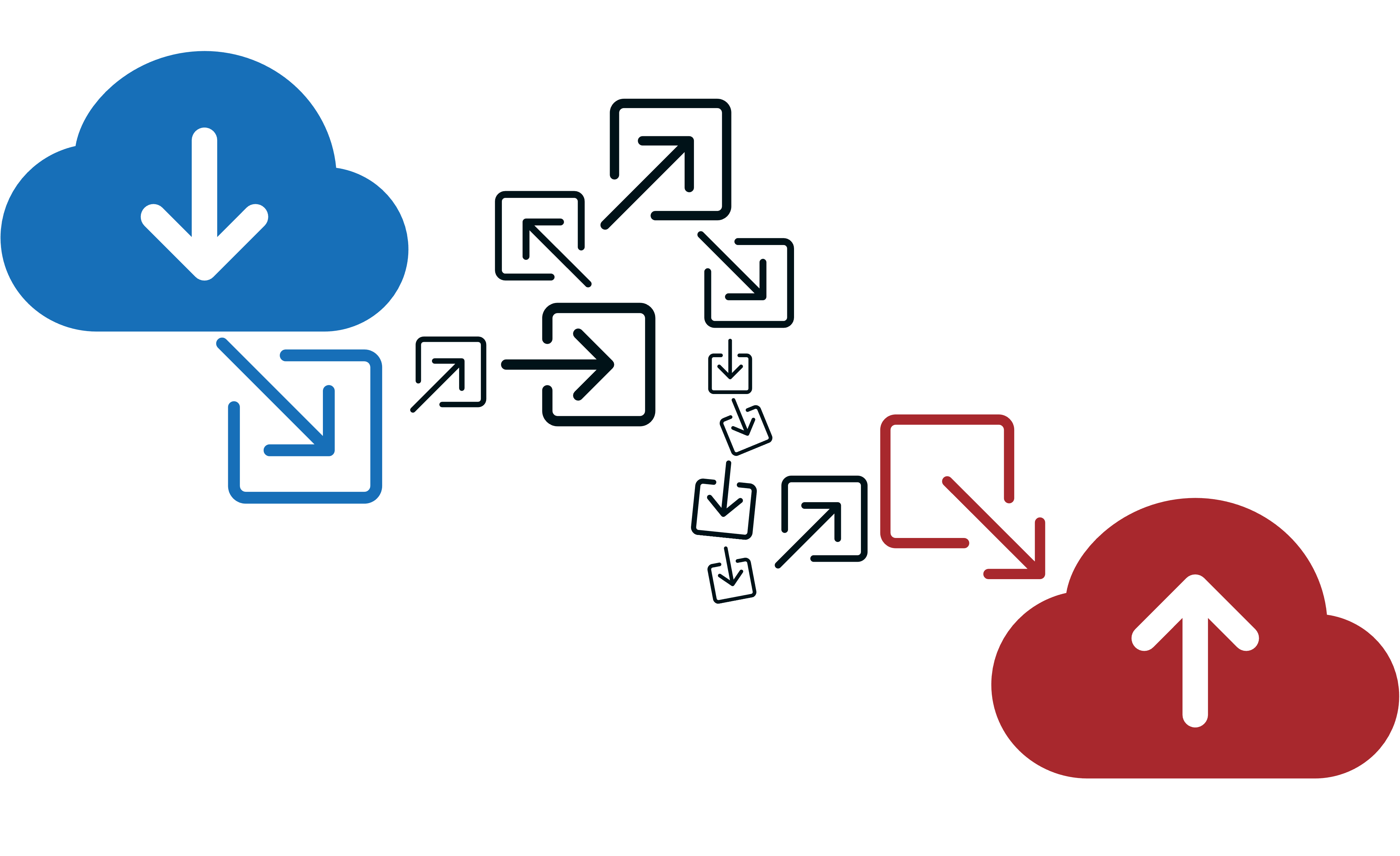
  1. Pull before you start editing
  2. Commit often as your work
  3. Push when you close your session

Thou shalt:

  • Use frequent, informative commit messages
  • Use a .gitignore to specify files and filetypes to keep local
  • Maintain a README.md file documenting your repo’s structure and purpose
  • Be intentional managing public and protected files

Remember the whole point of GitHub is version control!

Each assignment has a unique repo. Each repo is a unique files.

Never create multiple copies of the same files!!!

Merge Conflicts

merge conflict: Git cannot automatically reconcile differences between two versions of a file

Symbols like <<<, ===, and >>> mark conflicting sections.

All you have to do is change the text and delete the markers.

What you’ll see in a conflicted file:

<<<<<<< HEAD
This is the original line in the file.
=======
This is the conflicting change made by another user.
>>>>>>> feature-branch

You manually edit the file to resolve the conflict:

This is the original line in the file.
This is the conflicting change made by another user.

Git in the Command Line

Local git repos are managed through the command line (Terminal on Mac, Git Bash on Windows)


Step 1: Set up your local workspace

# navigate to local repo directory
cd repos/d2m-r/slides

# get latest changes from upstream repo
git pull origin main

Step 2: Do stuff. Make changes, additions, whatever in the repo files

Step 2.5: Commit your work frequently after every “nameable” change.

# commit staged changes with "m"essage
git commit -m "Create first draft for GitHub lecture"

Step 3: Send your committed changes back to the remote repo

# send commits to upstream repo
git push origin main

Git in RStudio: git pane

The git pane displays a list of all tracked files in your repo, along with their current status.

  1. Pull: get latest changes from remote repo
  2. Stage: select files to include in next commit
  3. Commit: save a snapshot of staged changes with a descriptive message
  4. Push: send your commits to remote repo

Git in RStudio: git window
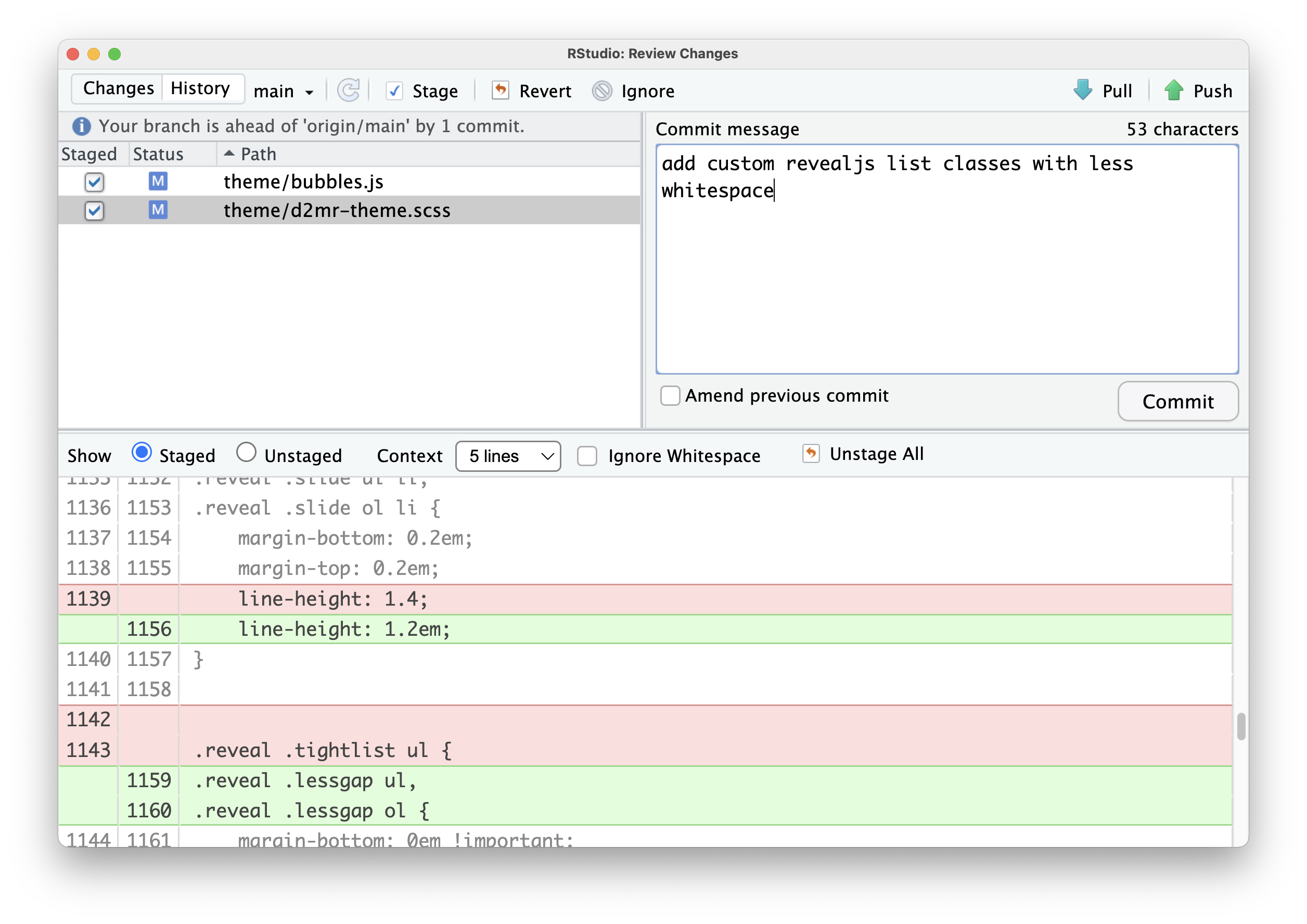
The git window opens when you click commit, diff, or history. It includes everything from the pane, plus:

  • Diff viewer: see line-by-line changes in selected files
  • Revert button: reset local changes in selected files back to their last commit
  • Ignore button: add selected files to your .gitignore and remove them from your staging area
  • Commit message box: write descriptive messages for your commits
  • Commit history: view past commits and their messages, where you can revert the whole repo

Git Project Components

What literally goes in your git repo?

Repository Structure

A typical Git repository includes:

  • Project files
    • The actual content of your project (e.g., scripts, data, documents), organized in a logical folder structure
  • Metadata files
    • Hidden files and directories (like .git/) that Git uses to manage version control
  • README.md
    • A markdown file that provides an overview of the project, instructions for use, and other relevant information
  • .gitignore
    • A text file that specifies which files or directories Git should ignore
  • Configuration files (as needed)
    • Things like .yml options, bibliography files, themes, etc.

Repo Structure: Example 1

Project file directories

  1. /localonly: only present in your local R Project, listed in your .gitignore and never synced to github
  2. /data: .csv/tabular data files for all raw or intermediate datasets read into in your .qmd, optional /raw subfolder for raw data read (only) into unsourced R scripts
  3. /source: .R scripts to be called in an early chunk of your .qmd, e.g., stylistic preferences, functions, minor data wrangling
  4. /images: exported figures and any image files to read-in to your R Markdown manuscript
  5. /_extensions: auto-generated or installed Quarto extensions, like apaquarto

Top-level files

  1. README.md: project overview, repo structure, to-do list, etc.
  2. .gitignore: starting from the R .gitignore template
  3. project-manuscript.qmd: the home of your eventual publication
  4. bibliography.bib: a plain-text file containing all the BibTeX entries cited in your manuscript
  5. yourCitationStyle.csl: the script used to format in-text and bibliography citations when knitting

Repo Structure: Example 2

A simple, generic project:

quarto-manuscript-project/
├── README.md
├── .gitignore
├── project-manuscript.qmd
├── bibliography.bib
├── yourCitationStyle.csl
├── localonly/                 // ONLY ON YOUR COMPUTER, NOT GITHUB
├── data/
│   ├── raw/                   // Raw data read into unsourced R scripts
│   └── cleaned-data.csv       // Processed data read into your .qmd
├── source/
│   ├── style-preferences.R    // Styling/theming
│   ├── custom-functions.R     // Reusable functions
│   └── data-wrangling.R       // Minor data prep
├── images/
│   ├── figure1.png
│   └── figure2.png
└── _extensions/
        └── apaquarto/             // Auto-generated extension files

Hidden files and directories (non-exhaustive list)

  • .git/ - Git metadata, what makes Git work
  • .Rproj.user/ - RStudio project settings
  • .quarto/ - Quarto project settings
  • .Rproj
  • .RData
  • .Rhistory
  • .DS_Store

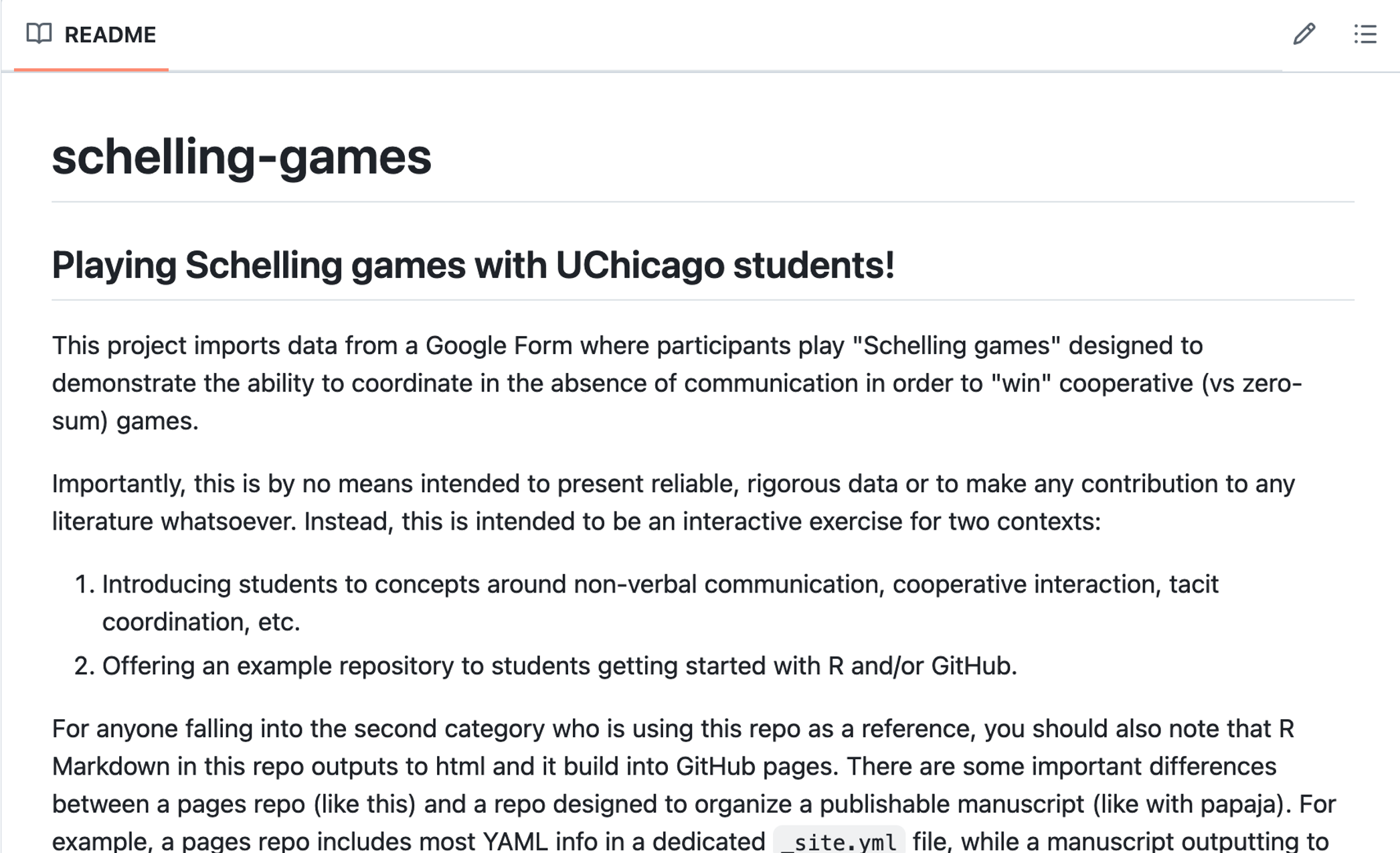
README.md

A README.md file provides a project overview. It is typically the first thing someone sees when they visit your repository on GitHub.

  • Simple markdown (.md) document
  • What you see rendered on a repo’s GitHub page
  • Minimally describe:
    • Purpose of the repo
    • Dataset(s)
    • Repo structure
    • Any relevant licensing, restrictions, or citations
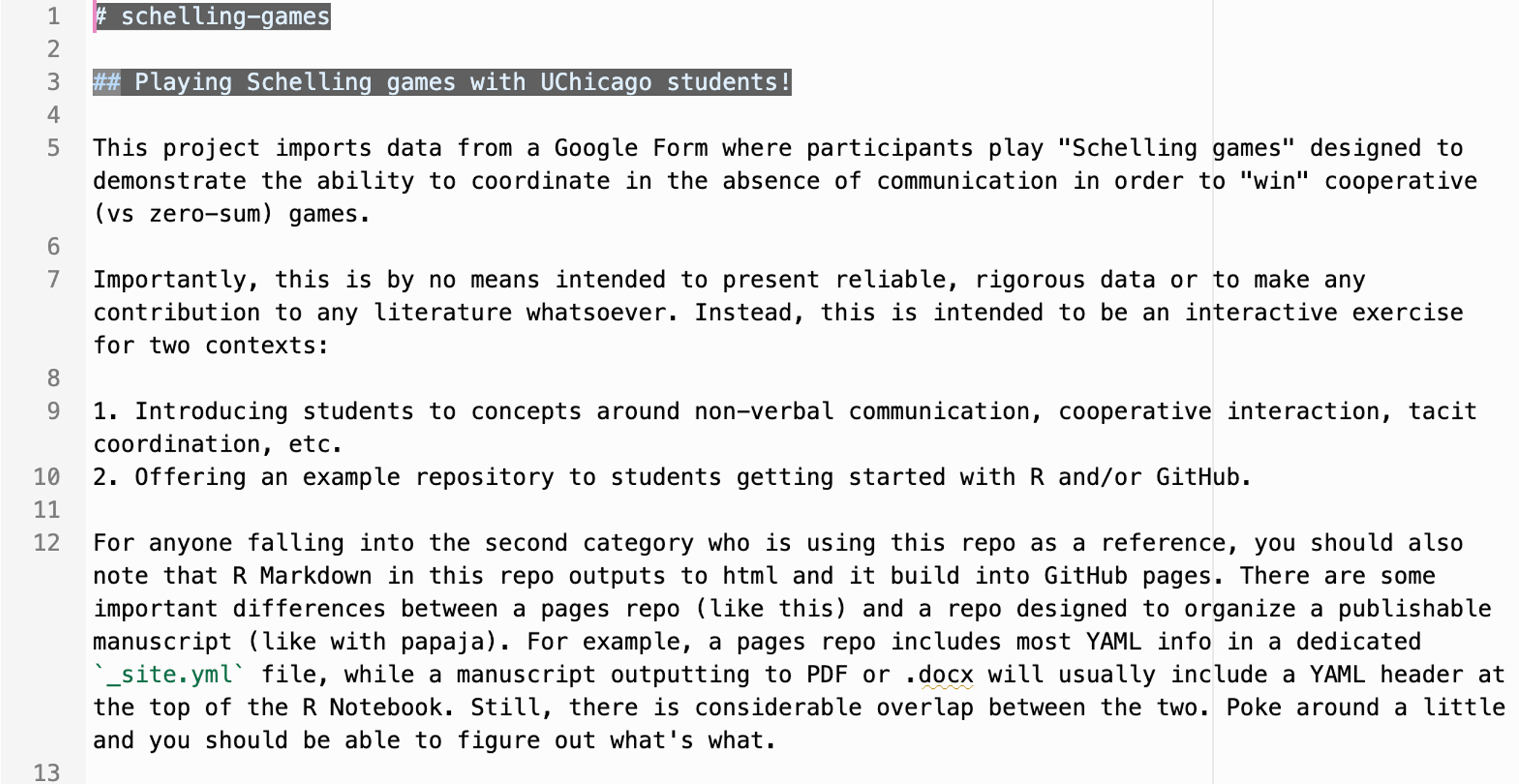
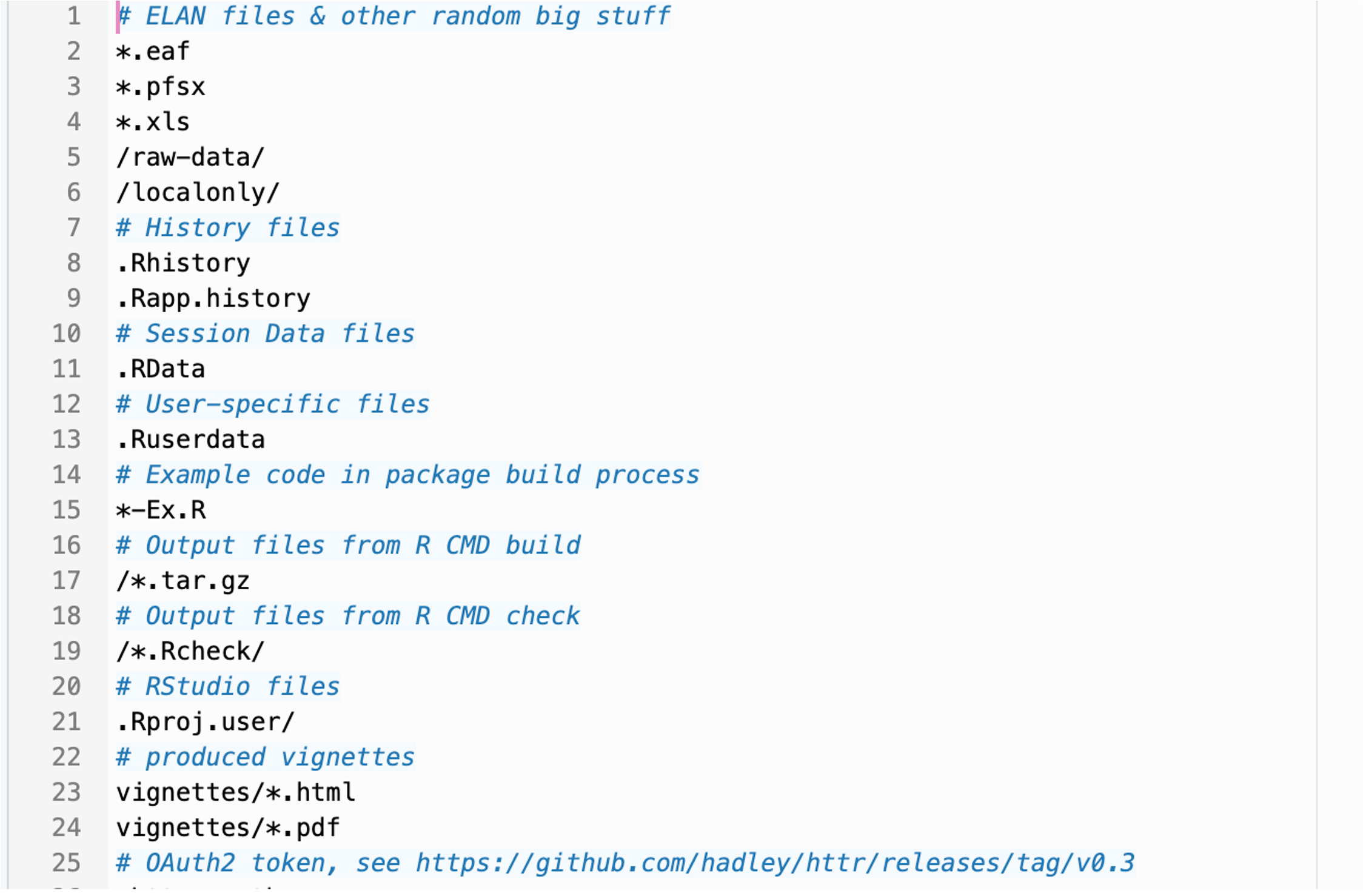
.gitignore: what

A .gitignore file tells Git which files and directories to ignore when comparing differences between versions.

  • Plain text file w/out extension
  • Files & folders excluded from all git processes
  • Matched on strings, including wildcard characters and simplified regex
  • View documentation

.gitignore: why

Not everything belongs online.

  • PRIVACY.
    • Do not upload anything with sensitive or identifiable information.
    • It is your responsibility to follow your IRB.
  • Security
    • passwords, security keys, login tokens
  • Bloat
    • Git is designed for text files
    • Large files push very slowly and can cause RStudio to hang
    • Some files are regenerated automatically
  • Conflict
    • “behind the scenes” files that actually interact with local, git, or R processes will conflict for baffling reasons (sort of a technological observer effect)

.gitignore: how

Optionally start with a template then:

  • Use informative # comments
  • Protect private data in a localonly/ folder
  • Ignore files/folders with matched text

Ignore large files

  • Media files: e.g, *.png, *.jpg, *.mp4
  • Presentation files: e.g., *.pptx, *.key
  • Specialized and raw files: e.g, *.bdl, *.ear, *.mgh

Ignore auto-generated files

  • System files: e.g., *.DS_Store, *.RData, *.Rhistory
  • Process files: e.g., *.log, *.aux, *.out
  • Compiled files: e.g., *.pdf, *.docx, *.html

.gitignore: how (verbose)

Optionally start with a template then:

  • Use informative # comments
  • Protect private data in a localonly/ folder
    • Dedicated place for anything you need to keep offline that the .gitignore might not explicitly catch
    • Good place to keep deanonymized datasets instead of trusting yourself to remember to add them to the .gitignore
  • Ignore files/folders
    • Matching the name: data/raw/sensitive_data.csv, topsecret/
    • Using wildcards: *.pdf, no-git_*

Ignore large files

  • Media files: e.g, *.png, *.jpg, *.mp4
    • tend to be very large, often contain sensitive info
  • Presentation files: e.g., *.pptx, *.key
    • not necessary for reproducibility, often large
  • Specialized and raw files: e.g, *.bdl, *.ear, *.mgh
    • data needs to be tabular eventually anyway

Ignore auto-generated files

  • System files: e.g., *.DS_Store, *.RData, *.Rhistory
    • platform-specific, or not text-based
  • Process files: e.g., *.log, *.aux, *.out
    • should be deleted after success but can stick around if knitting fails
  • Compiled files: e.g., *.pdf, *.docx, *.html
    • recreated every time you knit

Key Takeaways

  • Manage all projects with version control
  • Git is a powerful version control system; GitHub is a platform for hosting Git repositories
  • Key Git concepts:
    • repositories: folders tracked by Git
    • commits: snapshots of changes
    • pulls: get changes from remote repos
    • pushes: send changes to remote repos
  • Your repo needs:
    • project files
    • metadata files
    • a README.md
    • a .gitignore file
  • PULL when you sit down to work. COMMIT frequently as you work. PUSH when you pause or finish.