RStudio & Quarto

RStudio IDE, Quarto, markdown

2026-01-13

Housekeeping

  • Office Hours
    • Dr. Dowling: Thurs 2-4pm, 1155 Bld. Room 181
    • Qilong Bi: Tues 2-3:30pm, 1155 Bld. Room 222
      • Open/drop-in
  • Accountability plans past-due
  • Accept the GitHub D2M-R organization invite
  • RStudio + Git setup: happygitwithr.com

I Talk, You Do

Follow Along

These slides are only useful if you can match them to your computer.

  • Open the example assignment project (or something else) in RStudio
  • Open the main Quarto notebook .qmd and the markdown README.md
  • When I talk about an RStudio feature, find and use in your RStudio interface
  • When I talk about a Quarto feature, find it in the example notebook and try it out
  • If you can’t directly connect what I’m talking about to what you’re seeing, STOP ME.

The Tools

Markdown

Markdown is a lightweight markup language for creating formatted text using a plain-text editor.

  • Easy to read, write, and convert to rich text formats
  • Widely used in documentation, blogging, and collaborative platforms
  • Comes in “flavors” building on each other
  1. Standard Markdown
    1. GitHub Flavored Markdown (used by READMEs on GitHub)
    2. Pandoc Markdown
      1. R Markdown
      2. Quarto (aka R Markdown 2.0)
      3. many more
    3. many, many more
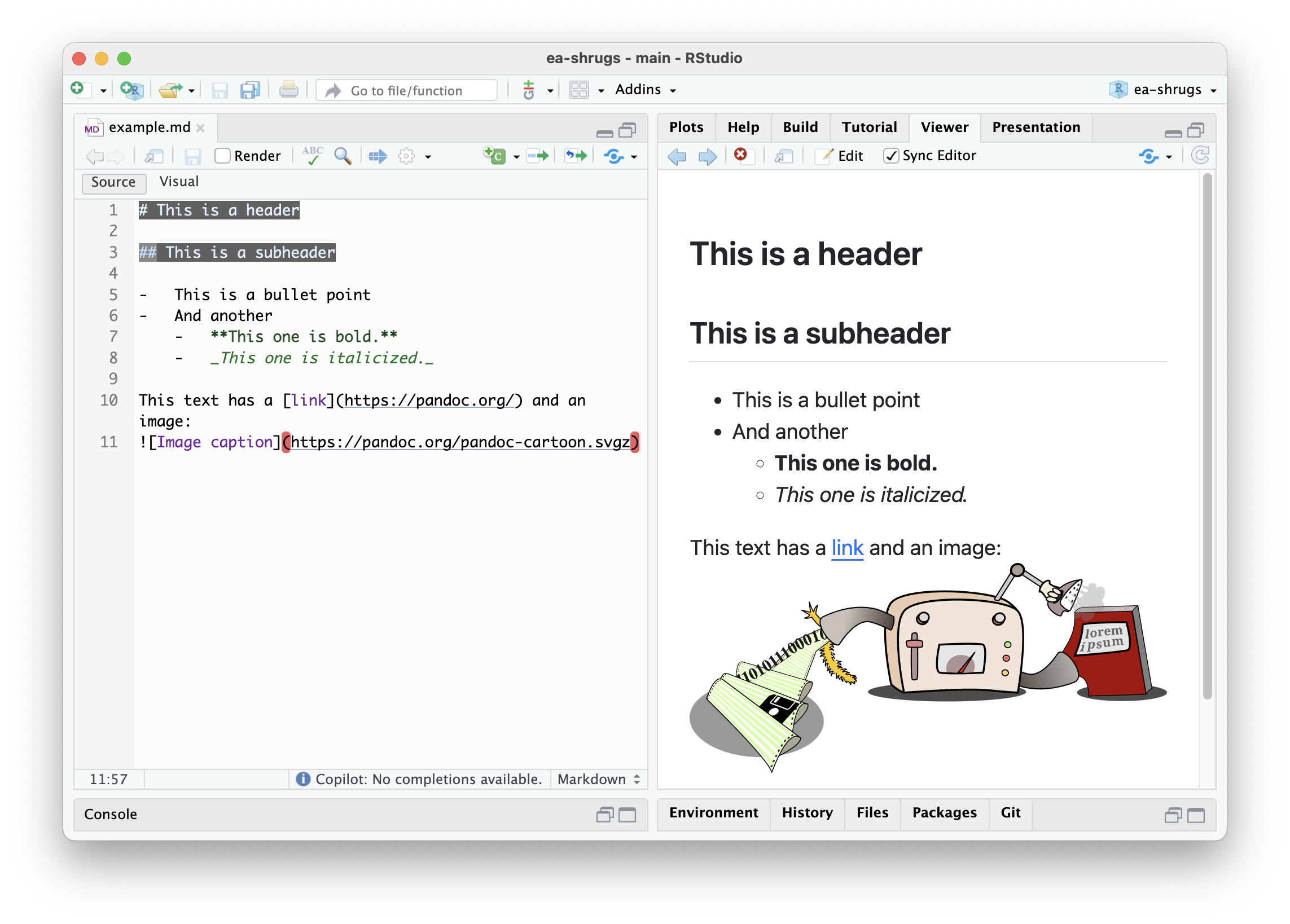
# This is a header

## This is a subheader

-   This is a bullet point
-   And another
    -   **This one is bold.**
    -   _This one is italicized._

This text has a [link](https://pandoc.org/) and an image:
![Image caption](https://pandoc.org/pandoc-cartoon.svgz)

R

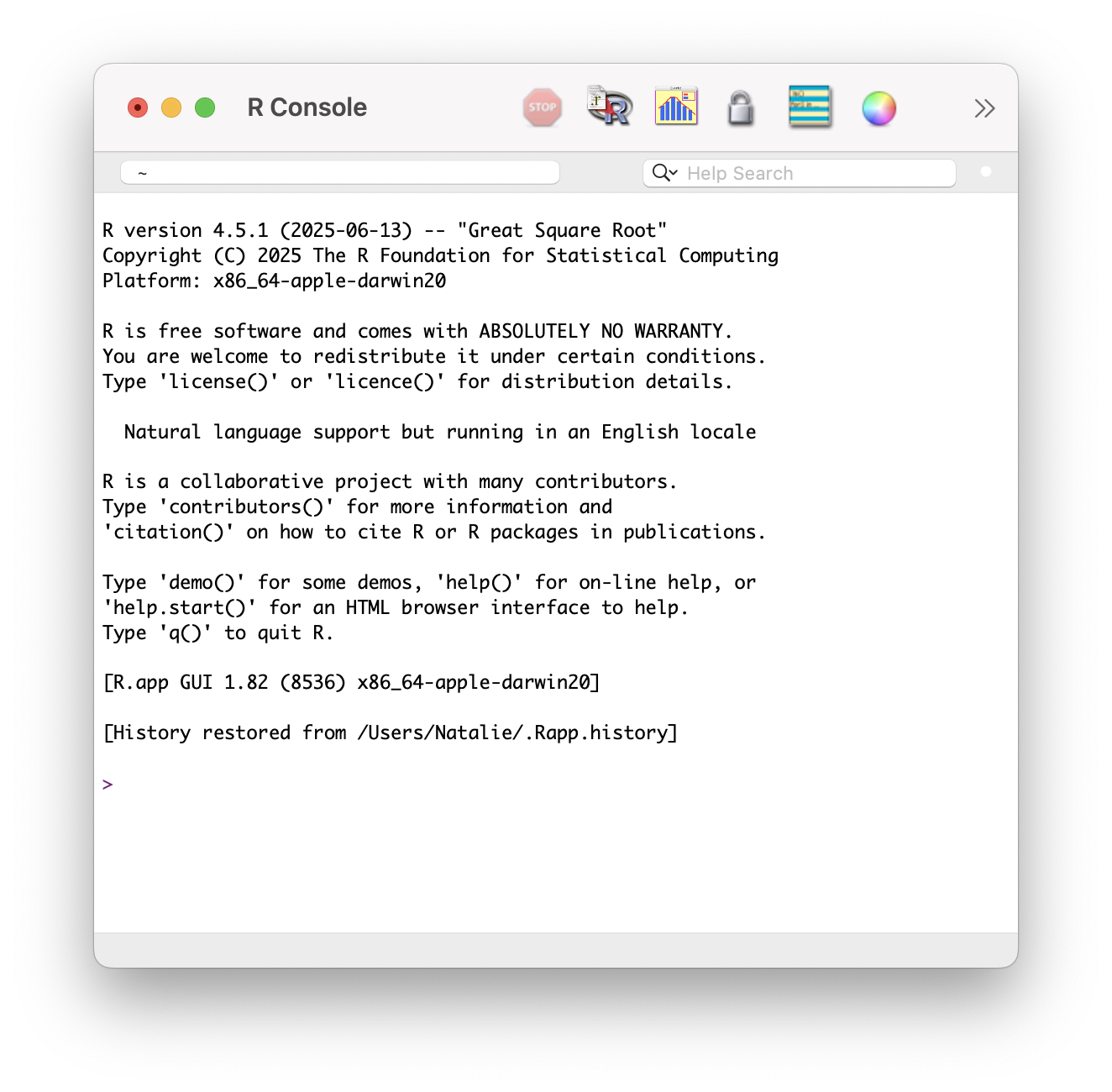
R is a programming language and computing environment.

  • Developed for statistics and data science
  • Open source and free
  • Can be run from command line or basic console
RStudio

RStudio is an Integrated Development Environment (IDE) for R.

  • Provides a user-friendly interface
  • Enhances productivity with:
    • Syntax highlighting
    • Code completion
    • Project management
    • Integrated help
    • Plot viewing
    • Package management
    • Git integration
# Assign a string to a variable
rstudio_is_cool <- paste("R", "and", "RStudio", "work", "together!")

# Print the variable
rstudio_is_cool
[1] "R and RStudio work together!"

Quarto

Quarto is an open-source scientific and technical publishing system built on Pandoc.

  • Supports multiple programming languages (R, Python, Julia, etc.)
  • Enables creation of dynamic documents, presentations, websites, and reports
  • Integrates with RStudio IDE for seamless workflow
# Assign a string to a variable
quarto_is_cool <- paste("Quarto", "is", "cool!")

# Print the variable
quarto_is_cool
[1] "Quarto is cool!"

RStudio Interface

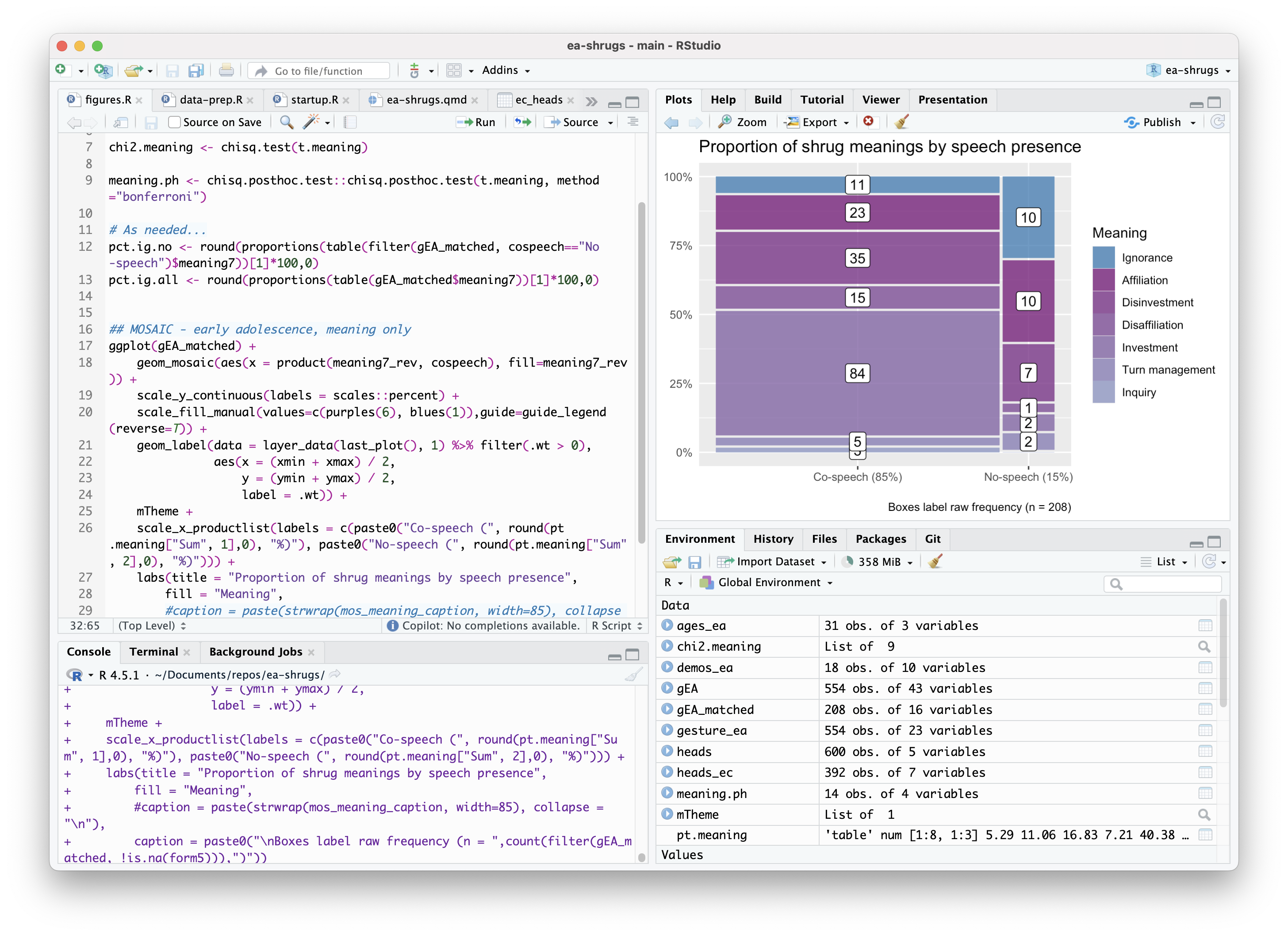
Pane Layout

  1. Top Left: Source pane (your scripts and documents)
  2. Top Right: Environment, History
  3. Bottom Left: Console, Terminal, Background Jobs
  4. Bottom Right: Files, Plots, Help, Viewer

Pane Layout: Custom

  1. Top Left: Source pane (your scripts and documents)
  2. Top Right: Plots, Help, View
  3. Bottom Left: Console, Terminal, Background Jobs
  4. Bottom Right: Environment, Files, Packages, Git

Customize!

I hate the default layout and always change it. You should figure out what works for you:

Tools > Global Options > Pane Layout

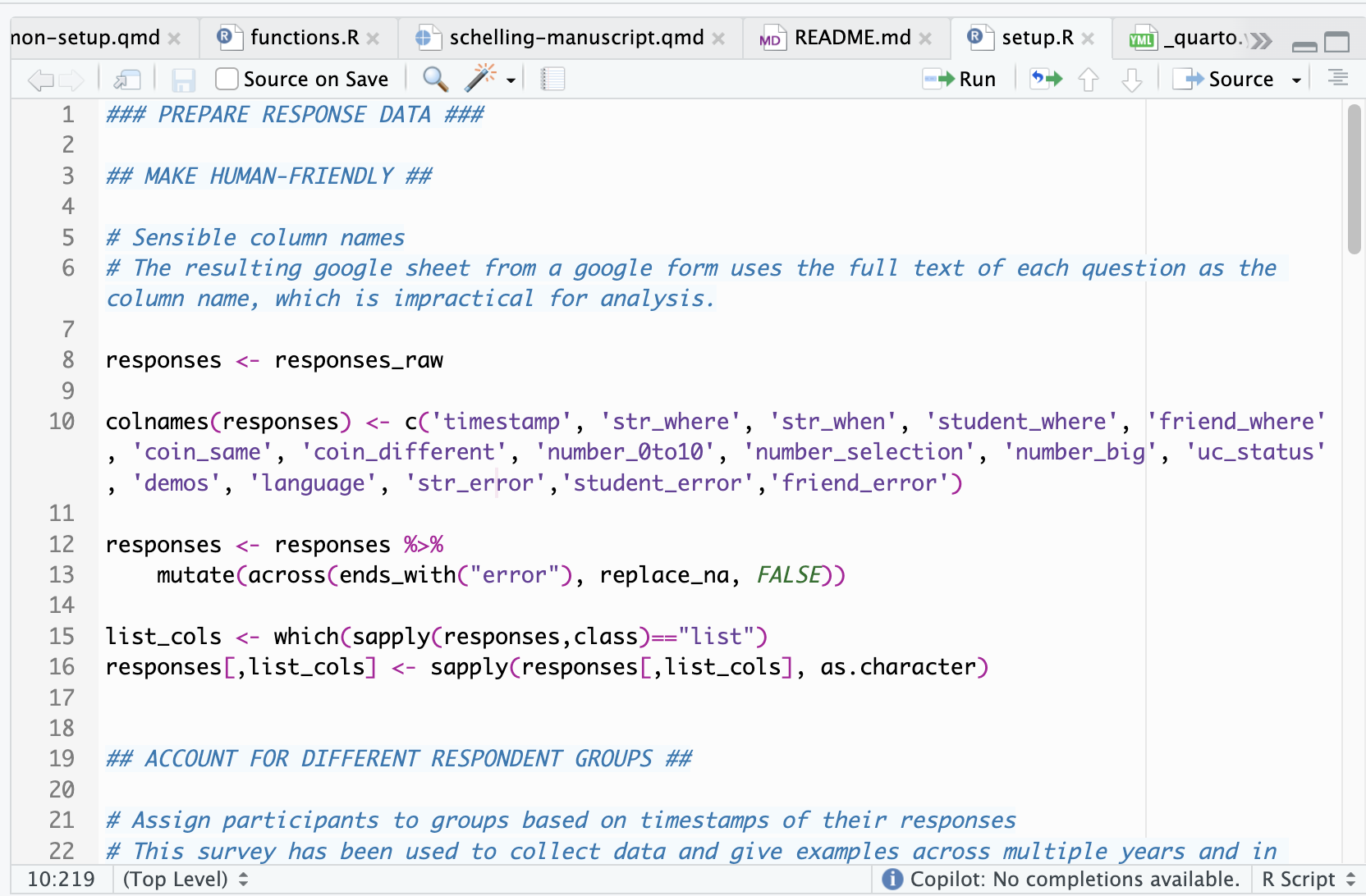
Source Pane

View, write, edit text:

  • View/edit text files (.R, .qmd, .Rmd)
  • View data objects (read-only)
  • Multiple files open as tabs
  • Pop out files with “show in new window”

Running code from source:

  • Cmd/Ctrl + Enter: run selected code (or current line)
  • Cmd/Ctrl + Shift + Enter: run entire file
Console Pane: Three Tabs

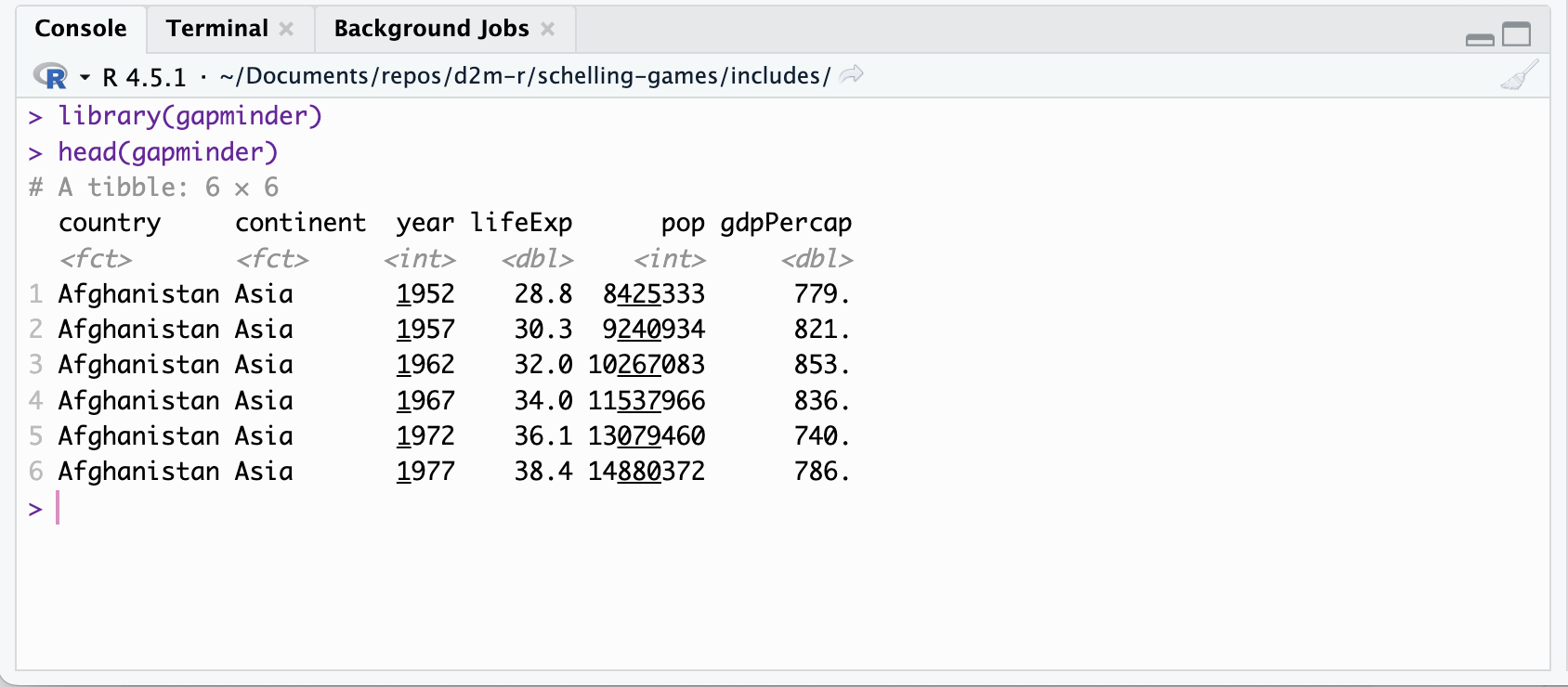
Console

  • Execute R code
  • View output
  • Shows errors, warnings, and messages from R

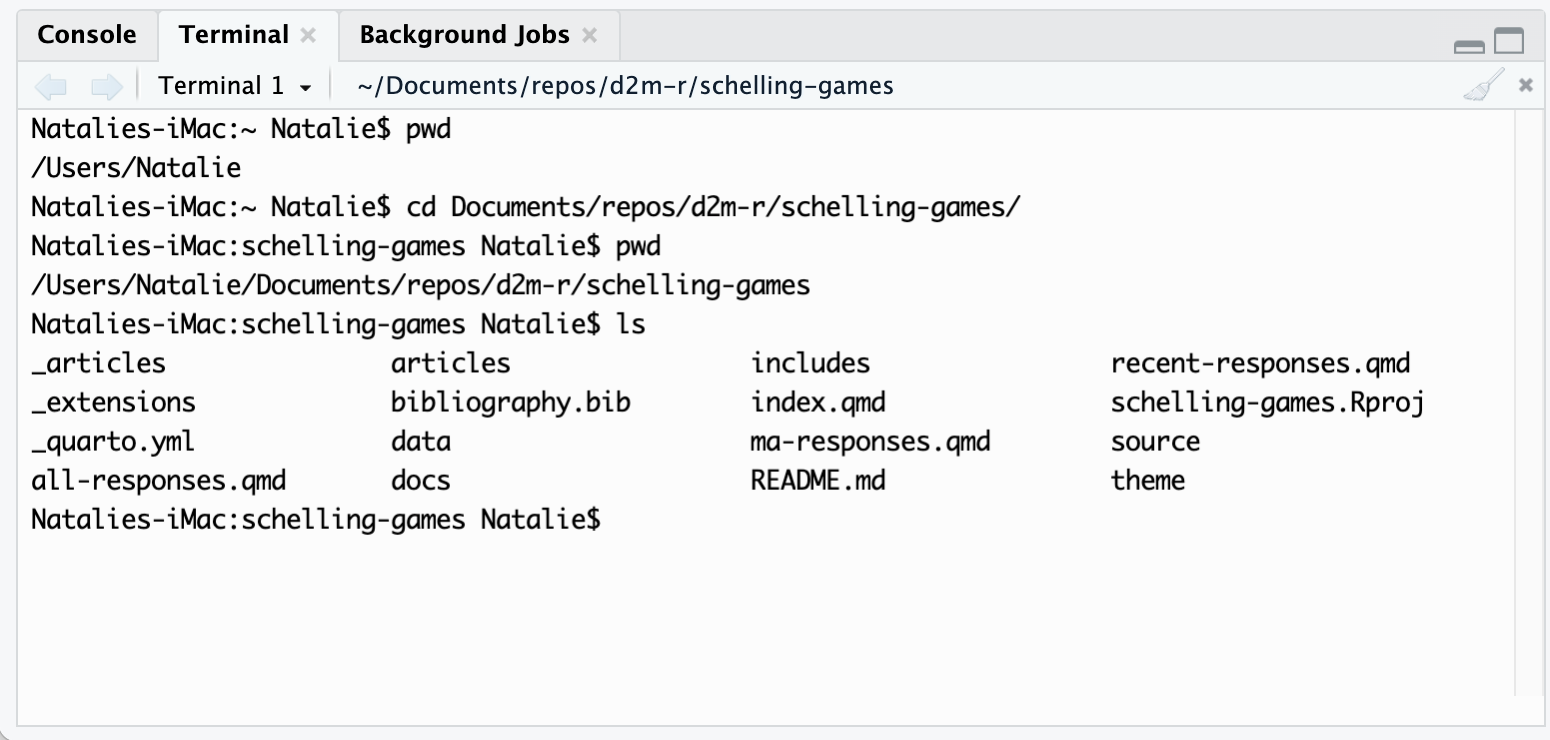
Terminal

  • Bash/shell command line interface
  • Git, Quarto, system commands
  • Does NOT run R code

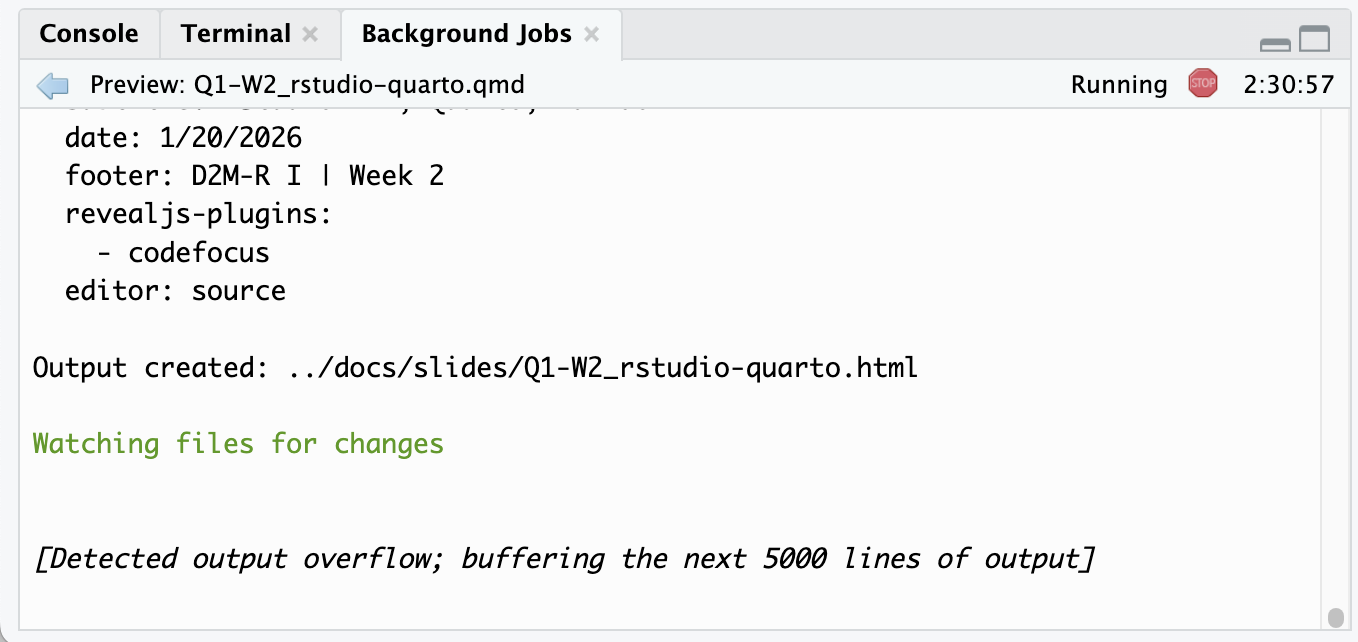
Background Jobs

  • Monitor rendering processes
  • Errors from Quarto or knitr rendering
  • Stop sign to force quit

Console vs. Source Scripts

R code can be run in both the console and source scripts, but they serve different purposes:

Task Source Script Console
Quick calculations
Testing new functions
Creating objects
Data wrangling
Publication plots
Reproducible analyses

If you might need it again, use a source script.

Environment Pane

Shows all objects loaded in your R session

  • Dataframes, variables, functions
  • Click blue arrow to expand objects
  • Click name to view in source pane
  • Broom icon clears environment

Environment resets when R session restarts. Rerun code to recreate objects.

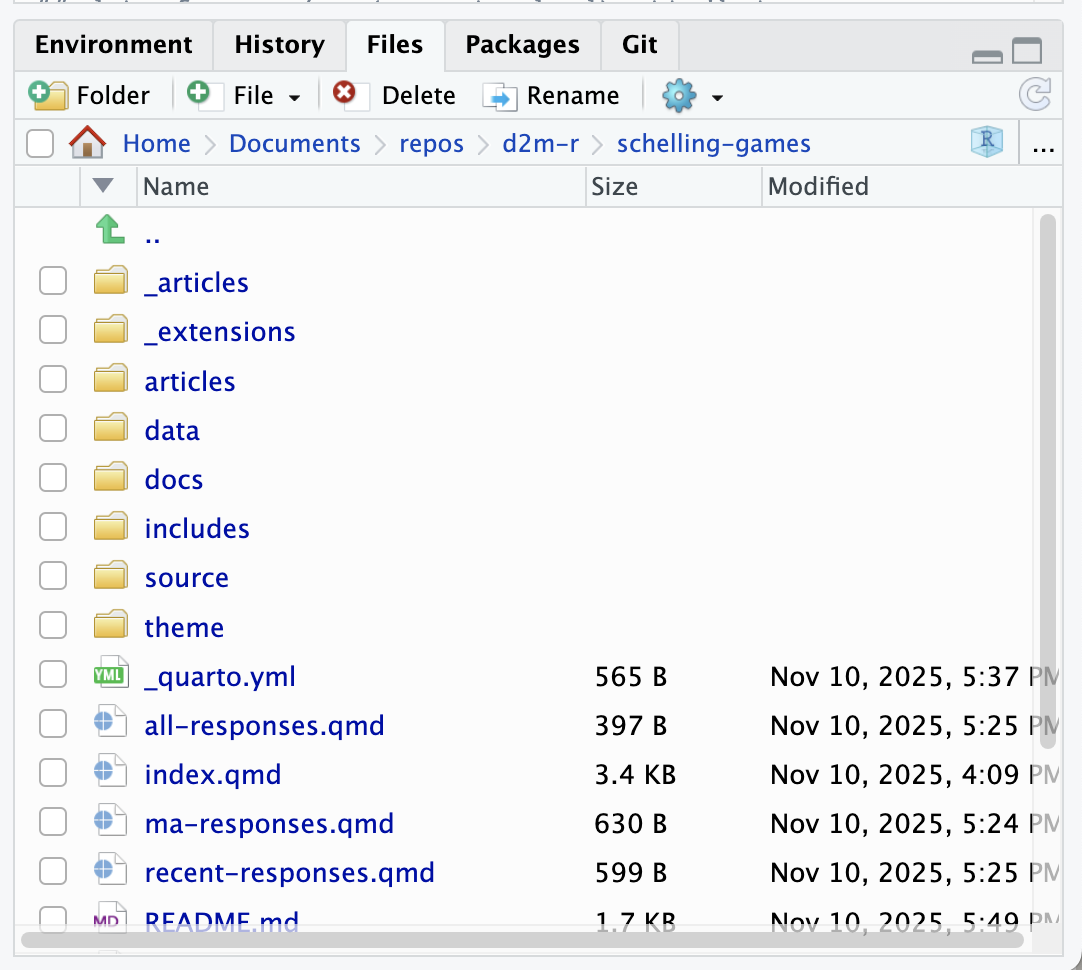
Files Pane

Directory navigator + working directory management

  • Navigate folders like Finder/Explorer
  • Create, delete, rename files
  • More → Set as Working Directory

Working directory matters for file paths

  • ❌ Absolute: "/Users/Natalie/Documents/repos/D2M-R/data/mydata.csv"
  • ✓ Relative: "data/mydata.csv"

RStudio projects

  • Project file (.Rproj) sets working directory as project root
  • 1 Project = 1 Repo
  • Open projects in different sessions

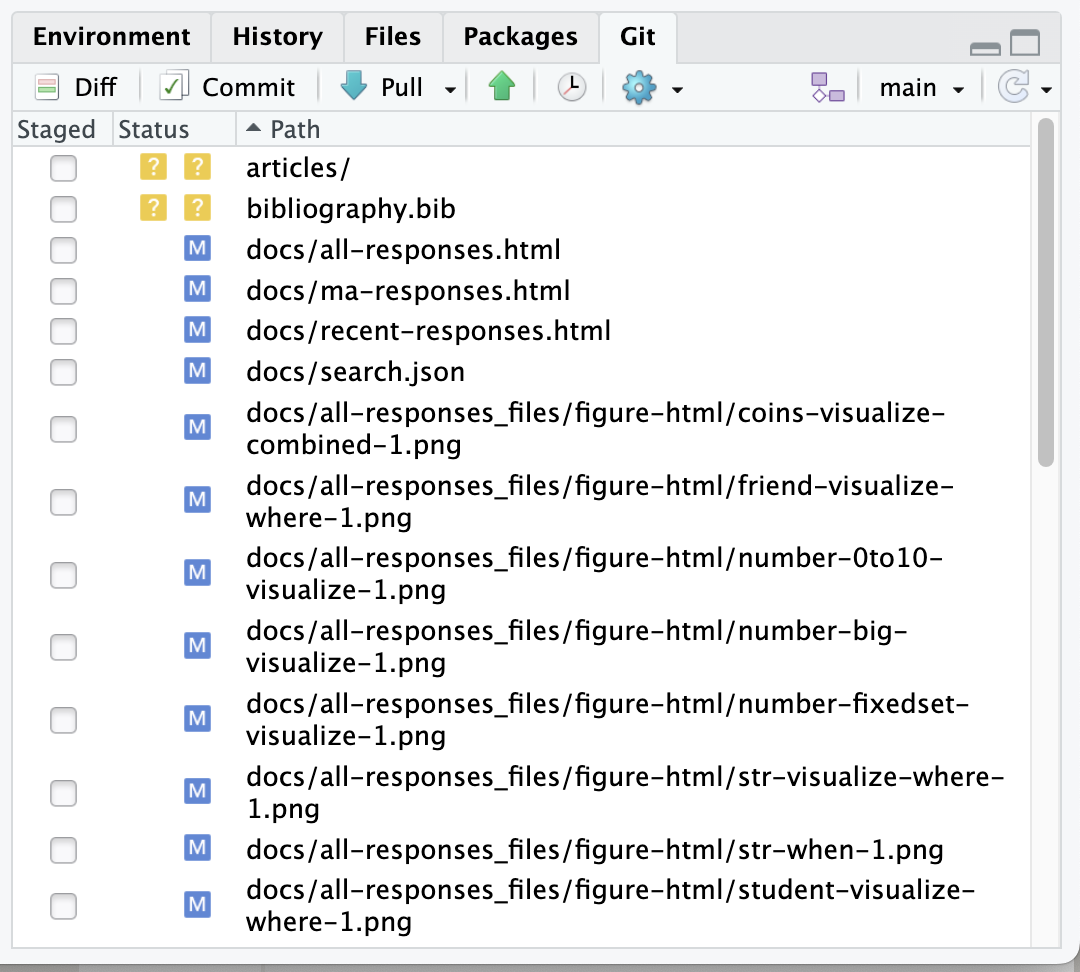
Git Pane

Perform basic git operations from RStudio

  • View changed files since last commit
  • Stage files (checkbox)
  • Commit and history buttons open detailed window
  • Pull from and push to remote

Other Important Panes

Packages pane:

  • View installed/loaded packages
  • Update packages
  • Click name → documentation
  • Don’t install from pane, use install.packages() in code

Help pane:

  • Function documentation
  • Search or use ?function_name in console

Plots pane:

  • Visualizations from R scripts
  • Export, zoom, clear, save image
  • Code: prefer ggsave() for reproducibility

Viewer pane:

  • Rendered HTML, Quarto documents
  • Shiny apps, interactive visualizations
  • “Open in Browser” to pop out

Key Takeaways

  1. Source pane for writing code you want to keep
  2. Console for quick tests (check your tab!)
  3. Use relative file paths and RStudio projects
  4. Git pane for standard workflow; terminal for problems

Code vs. GUI

Nearly all pane actions have code equivalents. Only use GUI shortcuts for things you already know how to do in code!

RStudio Projects with Quarto

Project Makeup

  • RStudio Project file (.Rproj): manages project settings
  • R scripts (.R): contains (only) R code
  • Markdown files (.md): contains (only) formatted text
  • Quarto file (.qmd): contains combination of text, code, and formatting instructions

R Markdown vs. Quarto

R Markdown documents/notebooks (.Rmd) combine R code and markdown text to produce dynamic reports.

.Rmd = .R + .md

Quarto documents (.qmd) are the next generation of R Markdown notebooks, with more features and better multi-language support. Quarto is backward compatible with R Markdown, so all R Markdown documents can be used as Quarto documents.

.qmd = .Rmd^2

Quarto Documents

Unify your workflow producing a scientific report1, reduce errors, and save time.

Use one (1!) document to:

  1. Read in and prep data
  2. Make figures and tables
  3. Run statistical analyses
  4. Write report narrative text
  5. Cite papers
  6. Add in-line, dynamic results
  7. 1-click render to multiple formats (HTML, PDF, Word, slides, etc.)

Quarto Workflow

Create your RStudio project & repo

Create your Quarto .qmd document

Put code in “chunks” (inline .R scripts)

Write text with Quarto markdown

Customize YAML header

Cite sources with BibTeX

Set options for your output

Knit your document to desired format

Anatomy of a Quarto Document

YAML Header

---
title: "Diamond sizes"
date: 2016-08-25
format:
    html:
        toc: true
        code-fold: true
---

Code Chunks

```{r}
#| label: setup
#| include: false
library(ggplot2)
library(dplyr)

smaller <- diamonds %>% 
  filter(carat <= 2.5)
```

Markdown Text Content

We have data about `r nrow(diamonds)` diamonds. Only `r nrow(diamonds) - nrow(smaller)` 
are larger than 2.5 carats. The distribution of the remainder is shown below: 
    <!-- See figure below -->

YAML

YAML Header

```{yaml}
---
title: "Diamond sizes"
date: 2016-08-25
format:
    html:
        toc: true
        code-fold: true
---
```

Yet Another Markup Language

  • Rhymes with 🐪
  • Interchangeably .yaml and .yml
  • Human-readable data serialization format
  • Always the very first thing in a Quarto document
  • Specifies document metadata and options
  • Fenced with --- at top and bottom
  • Hierarchical structure using indentation
    • Whitespace sensitive!

Code Chunks

Code Chunk

```{r}
#| label: setup
#| include: false
library(ggplot2)
library(dplyr)

smaller <- diamonds %>% 
  filter(carat <= 2.5)
```

R Script Containers

  • Fenced with triple backticks and {r}
  • Chunk options in YAML-like format
  • Can (should) be named with unique label option
  • Contain R code and comments
  • Executed in order during rendering
  • Output (text, figures) inserted into final document

Code Chunks: Sourcing External R Scripts

Source Scripts

```{r}
#| label: source-data-cleaning

source("scripts/data-cleaning.R")
```

Source .R Files

  • Chunks should do 1 and only 1 easily nameable thing
  • Use source() to “inject” code from other files
  • Full contents of sourced script runs as if it were in the chunk
    • Only works with R scripts (.R), not other file types
  • Common uses:
    • Setup tasks
    • Pre-processing scripts
    • Function definitions
    • Complex analysis

Markdown Text Content

Markdown Text Content

We have data about `r nrow(diamonds)` diamonds. Only `r nrow(diamonds) - nrow(smaller)` 
are larger than 2.5 carats. The distribution of the remainder is shown below: 
    <!-- See figure below -->

Formatted Narrative Text

  • “Narrative” = lit review, methods, discussion, etc.
  • Anything outside YAML and chunks is treated as markdown
  • Optionally include HTML for advanced formatting
    • Uses HTML comment syntax: <!-- comment -->
  • Inline R code with `r code` syntax
    • Can reference sourced and chunk code
  • Can include figures, tables, citations, etc. as an alternative to rendering from code chunks

Demo

RStudio & Quarto Walkthrough

  1. Create a new RStudio project
  2. View/change global options
  3. Create README.md markdown file and setup.R script
  4. Create Quarto manuscript.qmd document with:
    1. YAML
    2. Chunks w/ source() and inline code
    3. Markdown text with inline R code
  5. Render the Quarto document to HTML